
Build Slide Decks Fast with AI
Turn a 7-Hour Deck Building Into a 90-Minute One.
Built for small screens — bite-size cards and quick checks instead of long scrolling.
Try it interactiveThe "AI slop" problem

Type "make me a presentation about our Q3 numbers" into an AI tool. You'll get a deck back in seconds.
It will also be bad. Generic titles, shallow bullet points, zero real data or context — the exact complaint that shows up constantly wherever people actually use these tools.
Reality check: the fix isn't avoiding AI. It's knowing what actually replaced the old skills. You don't need to learn design or code. You need a handful of specific new habits — covered from here on.
Where the time actually goes

The old workflow, honestly costed out:
Outline (1 hour) → Copywriting (2 hours) → Layout & aligning (3 hours) → Final polish (1 hour) = 7 hours.
Notice where most of that time actually goes: not writing the content, aligning text boxes.
The AI-assisted version: Deep outline and draft (using a chat assistant) → AI auto-layout → final human polish. About 1.5 hours.
The reframe: your job shifts from creator to editor. You're no longer building from a blank page or fighting formatting — you're steering and polishing something that already exists in rough form.
The three skills that replaced the old ones

1. Structured prompting — the narrative skill. Don't ask for "slides." Ask for a structured outline with an exact shape:
"Turn these notes into an 8-slide presentation outline. For each slide, give me a bold title, 3 concise bullet points, and a suggestion for a visual or graphic. Notes: [paste your report, meeting notes, or brain-dump]." This is the single highest-leverage habit in this course — a vague ask produces slop; a structured ask produces something genuinely usable.
2. Aesthetic curation, not alignment. You're no longer nudging text boxes into place. Your actual job now: choosing the best layout option from what the AI generates, and swapping generic stock photos for something with real relevance — your own screenshot, a chart from your actual data, a photo that means something to your team.
3. Document-to-deck conversion. Got a messy 10-page report or a wall of meeting notes? Upload it directly and ask for a logical flow:
"Here's our full weekly ops report. Convert it into a 10-slide status deck for Monday's leadership sync — one core point per slide, in the order leadership would want to hear it."
Design judgment AI won't apply unless you ask

Here's what AI-generated decks quietly get wrong by default: they cram in everything you gave them, because you didn't tell them not to. A slide with six bullet points and a paragraph of context isn't a mistake — it's what happens when nobody made the call to cut anything.
You don't need design training. You need to ask three questions of every slide, and have AI help you answer them:
Is there too much text? A slide someone can't absorb in ten seconds is a slide that's competing with you, not supporting you. Ask directly:
"Review this slide-by-slide outline. Flag any slide with more than 3 bullet points or more than 15 words per bullet, and suggest what to cut."
Should this be a chart instead of a bullet list? Numbers, trends, and comparisons are almost always clearer as a visual than as text. Ask:
"Which slides in this outline are presenting numbers or comparisons as bullet points? Suggest which ones should become a simple chart or diagram instead."
Is there one idea per slide, or three fighting for attention? If you can't summarize a slide's point in one breath, it's actually two slides.
None of this requires an eye for design. It requires knowing to ask the question — the same way structured prompting in Section 3 works because you specified the shape, not because you got lucky.
Prep to actually present it, not just build it

Most admin/ops decks aren't just read — they get presented, live, in a room or on a call. The deck is not the whole job. What you say next to it is.
Get speaker notes drafted alongside the slides, not as an afterthought:
"Write speaker notes for each slide — 2 to 3 sentences of what I'd actually say out loud, expanding on the bullets without just reading them verbatim."
Then anticipate the pushback before it happens in the room:
"Based on this deck, what are the 3 toughest questions leadership might ask, and how would you suggest I answer each one?"
Reading over those anticipated questions for two minutes before a meeting is often the highest-value two minutes you'll spend on the whole deck — it's the difference between being surprised by a question and having already thought about your answer.
Free vs. paid — the honest comparison
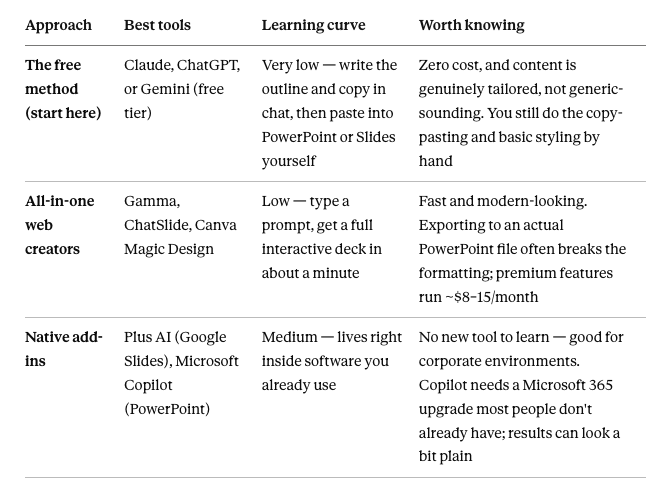
For a first attempt, start with the free method. It costs nothing, and the output is yours to shape from the beginning — not something you're fighting to export cleanly afterward.
The traps to know before you start

The rigid-template trap. Some AI slide tools lock you into one layout. Move a text box slightly, or swap an image, and the whole slide's formatting can break. Know this going in — it's the tool, not something you did wrong.
The "aesthetic but useless" trap. A web-based deck can look genuinely gorgeous and still be a problem the moment you need an editable PowerPoint file — exporting from a tool like Gamma or Canva to .pptx frequently breaks formatting you'll then have to fix by hand.
The sophistication ceiling. AI gives you clean, modern layouts — cards, timelines, grids — that would normally need a professional designer. It will not make your actual argument better. The substance is still entirely yours to supply.
The wall-of-text trap. Left unchecked, AI will happily fill a slide with everything you fed it. This is exactly what Section 4's three questions exist to catch — run that check before you call any deck finished.
The novelty trap. Flashy zoom transitions exist. Most audiences don't want them. Chase clarity, not novelty.
Try this today
The full action plan, start to finish:
Draft first. Open Claude or ChatGPT (free tier is enough). Paste your rough notes — a report, meeting minutes, a brain-dump — and use the structured prompt from Section 3.
Design-check second. Run the two questions from Section 4 against your outline before you build a single slide.
Build the deck. Need something to share online, fast? Paste it into Gamma. Need an actual PowerPoint file for a real meeting? Use a tool like Plus AI or Copilot to convert the text directly into slides.
Get your speaker notes and anticipated questions using the Section 5 prompts, before the meeting, not during it.
Nexa's Verdict: Hype 3/5 · Maturity 4/5 — genuinely saves most of a workday on a real deck. The ceiling is real too: AI compresses formatting time to almost nothing, but it still can't think for you about what the deck should actually argue, or stand in the room and answer the hard question for you.
What you now know
A vague prompt ("make me a deck about X") produces generic "AI slop" — a structured prompt with exact slide-by-slide requirements doesn't.
The old 7-hour workflow compresses to about 1.5 hours — your role shifts from creator to editor.
AI will cram in everything you give it unless you ask it to cut — check text density and flag numbers that should be charts, not bullets.
Draft speaker notes and anticipated tough questions before the meeting — the deck isn't the whole job.
Start with the free method before paying for anything.
Watch for five traps: rigid templates, broken PowerPoint exports, the sophistication ceiling, walls of text, and chasing novelty over clarity.
Nice work — you've finished the reading
Ready to lock it in? Take the quick quiz and earn your free certificate.
Back to GMAsia Campus