
Power-up your spreadsheet productivity with AI
The Excel skillset has shifted: learn to direct AI for cleaning, formulas, automation, reporting, and real learning from errors.
Built for small screens — bite-size cards and quick checks instead of long scrolling.
Try it interactiveThe resume line that just changed meaning
"Proficient in MS Excel." For years, that line meant one thing: you knew the syntax, you could troubleshoot a broken formula, you could align 500 rows by hand without losing your mind.
Reality check: that's not what it means anymore. Being good at Excel now means knowing how to use AI to think with you — describing what you want clearly enough that hours of manual work become minutes of actual output.
This isn't about becoming a programmer. It's about knowing what to ask for, and having a working prompt ready when you need it.
Clean and match data by describing the pattern
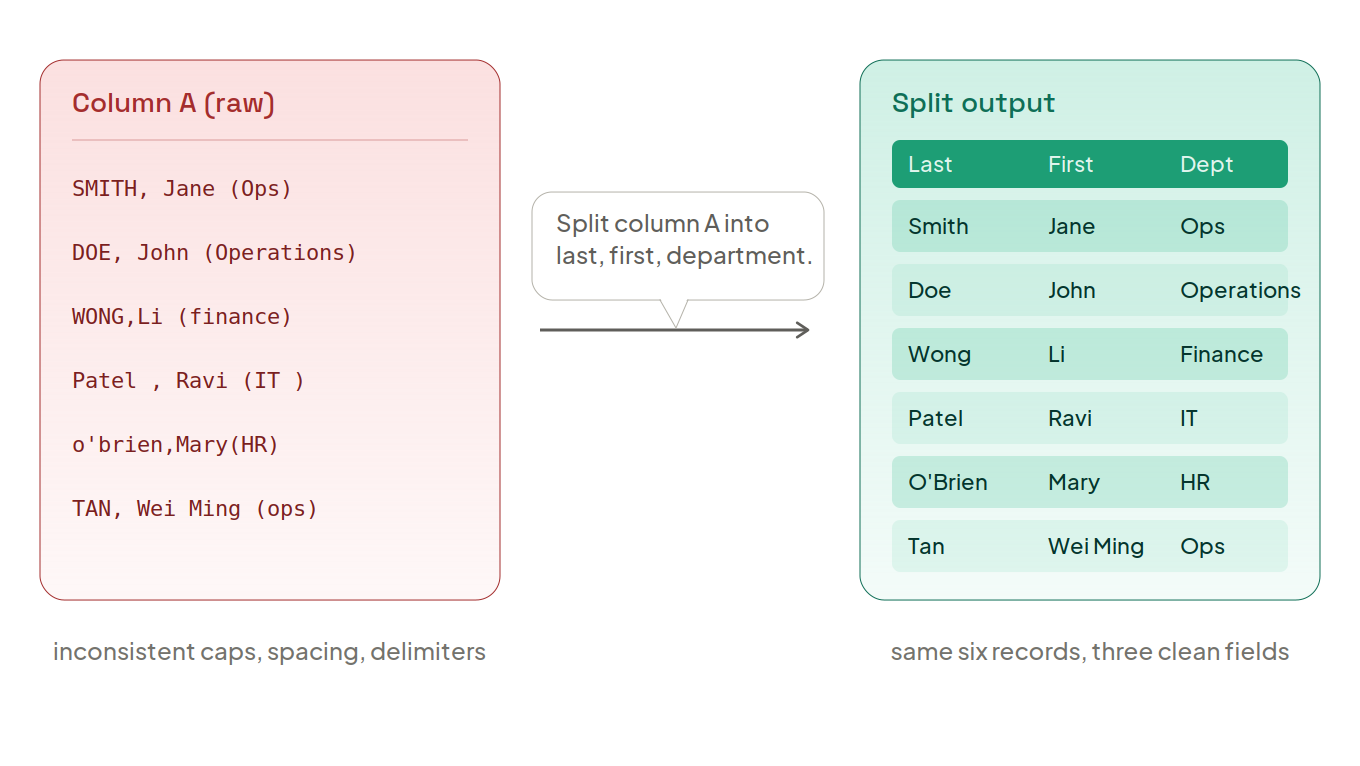
Messy text like john.doe_Operations_2026 needs to become three clean columns: John, Doe, Operations. Standardizing phone numbers. Fixing dates. Flagging duplicates. The classic Monday-morning task.
Old way: stitching together MID, LEFT, FIND, and LEN correctly, on the first try, without a typo.
If you have built-in AI (Copilot / Gemini): select the table and type:
"Look at Column B. Standardize all phone numbers to (XXX) XXX-XXXX, capitalize all names in Column A, and highlight any duplicates in light red." It edits in place. No formula to even look at.
If you're using a free assistant instead (ChatGPT / Claude): copy 5–10 rows of the messy data in and prompt:
"Column A has messy text formatted like 'LASTNAME, Firstname (Department)'. Split this into three columns: Last Name, First Name, and Department. Write the exact Excel formula for row 2, so I can drag it down."
Same skill either way: describe the pattern precisely enough that fixing 500 rows takes as long as fixing five.
Formulas you describe instead of debug

Getting hit with #N/A or #VALUE!, feeling your blood pressure rise, and losing thirty minutes to a search engine trying to figure out why your nested XLOOKUP or SUMIFS won't pull data — you don't need to be a syntax expert to skip that entirely. AI acts like an on-demand math tutor: it translates your logic into the exact formula.
If you have built-in AI: generate the formula in-line:
"Create a new column that calculates a 10% bonus if sales in Column C are greater than $50,000 and the region in Column D is 'North', otherwise output 0."
If you're using a free assistant: paste your headers and explain the logic:
"My headers are: ID, Employee_Name, Region, Sales, Commission. Write a formula for row 2 that uses XLOOKUP to pull the sales goal from a sheet called 'Targets' (ID in Column A, Target in Column B), compares it to Sales, and returns 'Goal Achieved' or 'Under Target'."
Paste-ready, first try, no thirty minutes lost to a search engine.
The big one: automation without code

This is the real ceiling-breaker. Every Friday, the same twelve manual steps to format and split a report — accepted for years as "just what you do, because you don't know how to code."
You don't need to learn to code. You need to describe the workflow. Here's the exact sequence:
1. Write down your manual steps, precisely. For example: "I open a master sheet, filter by Region, copy that region's rows, paste them into a new workbook, and save it as a PDF."
2. Ask AI for the VBA code. For this task specifically, a free external assistant (Claude, ChatGPT) tends to outperform built-in Copilot — complex, multi-step code is exactly where the extra depth matters:
"Write an Excel VBA macro that looks at Column C (Region). Automatically create a new sheet for every unique region, copy that region's rows onto its matching sheet, and save each sheet as a separate PDF in my Documents folder."
3. Open the VBA editor. Press Alt + F11 inside Excel. Click Insert → Module, and paste in the code you got back.
4. Test it — and if it breaks, don't panic. Run the macro. If Excel throws an error, copy the exact error text and reply to the AI:
"I ran the code and got this error: [paste error]. How do we fix it?" It'll rewrite the corrected code. This loop — run, break, paste, fix — is normal, not a sign you did something wrong.
Do this loop enough times on real errors, and something shifts. You start recognizing the pattern before the AI even explains it — a missing End If, a range that doesn't match. That's the difference between using AI as a crutch and using it as the fastest tutor you've had.
Ten reports into one, and a summary you can actually forward
Dragging fields around a pivot table, guessing whether something belongs in Rows or Columns, building a chart for a weekly sync by hand — replace all of it by just asking the question.
If you have built-in AI: it can see your whole open file:
"Analyze this sales sheet. What were our top 3 performing service categories last quarter? Build a Pivot Table showing this."
If you're using a free assistant with file upload (ChatGPT Plus, Claude Projects): export as .csv, upload, and ask for more than just numbers:
"Analyze this operations log. Tell me which employee resolved the most support tickets, the average resolution time, and give me a brief bulleted summary I can copy straight into an email to my manager."
Notice the ask isn't just "summarize the data" — it's "give me something I can forward today." That's the actual bar worth aiming for.
Choosing your tool, and the habit that makes you better
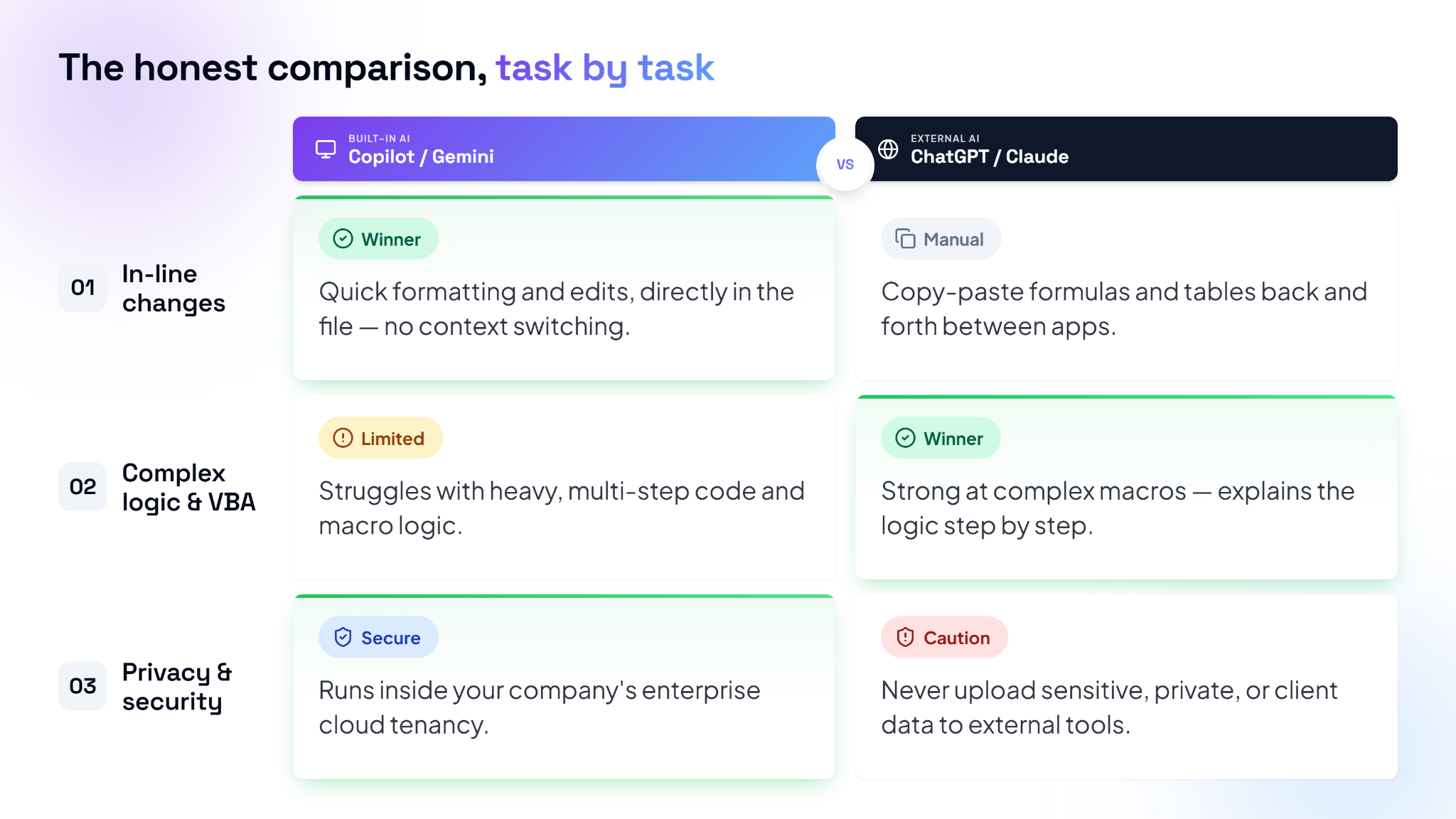
The honest comparison, task by task:
The honest comparison, task by task
- In-line changes
Built-in AI (Copilot / Gemini): Winner — quick formatting and edits, directly in the file
External AI (ChatGPT / Claude): Manual — copy-paste formulas and tables back and forth - Complex logic & VBA
Built-in AI (Copilot / Gemini): Limited — struggles with heavy, multi-step code
External AI (ChatGPT / Claude): Winner — strong at complex macros, explains the logic step by step - Privacy & security
Built-in AI (Copilot / Gemini): Secure — runs inside your company's enterprise cloud
External AI (ChatGPT / Claude): Caution — never upload sensitive, private, or client data
You don't need a paid Copilot subscription to get most of this value. A free external assistant often gets you further on the hardest problems — VBA, deep formula debugging — while built-in tools win when being directly inside your live file is what matters.
The habit worth building, deliberately: the next time a formula throws an error, don't just delete it and start over. Paste the exact error and the formula in, and ask what went wrong. Do that on ten real errors you actually hit, and you'll start spotting the issue yourself before you finish typing the question. That's real skill, not just faster output.
The takeaway underneath all four skills: AI hasn't made Excel obsolete. It removed the barrier to entry. The most valuable admin and ops professionals now aren't the ones who type formulas fastest — they're the ones who know how to direct AI to build the cleanest, smartest system for the job in front of them.
Nexa's Verdict: Hype 2/5 · Maturity 5/5 — one of the most immediately useful, least hyped applications of AI in this catalog. The VBA unlock alone is worth the eighteen minutes spent here.
What you now know
- Data cleaning, lookups, automation, and reporting can all be described in plain English now — no formula memorization required.
- VBA macros — real automation — are now something you request, not something you need to learn to code.
- Built-in AI wins for in-line edits and full-dataset pivot tables. Free external assistants win for complex VBA and deep formula debugging.
- Never upload sensitive company or client data to a free external tool.
- Paste your actual errors into AI and ask what went wrong — do it enough times, and you start recognizing the pattern yourself.
- The most valuable admin/ops professionals aren't the fastest typists anymore — they're the best directors of AI.
Nice work — you've finished the reading
Ready to lock it in? Take the quick quiz and earn your free certificate.
Back to GMAsia Campus